Showing posts with label JS. Show all posts

Wednesday, November 11, 2015

Firebase and those useful little things

In this blog, I'm attempting to write about useful features and tools that Firebase provides. These could make your job easy and some might even have a use case for you.
Open Data sets

Firebase provides open data sets that have read access to everyone. Live information is served for Airport delays across major cities in the US, crypto currencies like bit coins data, earthquake data, real time transit vehicle location data for many cities in the US, weather data and even parking fares and availability of parking slots in SFO city. 
One could see these as a demonstration of quality of Firebase service and validate real world scenarios. They also provide utility value for a Website or a mobile app. It's documented at this link 

Consider following code that reports airport delays at SFO using Firebase open data set and AngularJS


Vulcan - Chrome extension

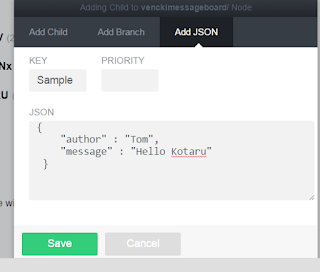
Vulcan is a Google Chrome extension to view and edit Firebase data. (Link to the extension). Even though most of viewing and editing could be done by opening the Firebase application in a browser, Vulcan makes it easy to add and edit JSON node to your dataset.

Firebase Tools - Bootstrap

Bootstrap option in Firebase tools allow you to create a template or sample app on your machine. It provides all nuts and bolts for the app already. You could keep required features, enhance them and yank any unnecessary code. Follow below steps create a skeleton project

1. Install Firebase Tools
npm install -g firebase-tools

2. Run bootstrap
firebase bootstrap

3. It will ask couple of questions like, which Firebase app would you point to and chose from list of available template projects. Refer to the list below. After making the selection template project is created in a folder at the current directory.

Note: will ask you to authenticate using Firebase credentials if you are not already logged in.
----------------------------------------------------
Available Templates
----------------------------------------------------
angular     - The AngularFire seed template
backbone    - Example to-do app using BackFire
chat        - A realtime multi-person chat client with JavaScript, HTML, and CSS

drawing     - Share a canvas and collaboratively draw with other users
firechat    - A more fully-featured chat widget using Firechat
firepad     - Collaborative text editing with Firepad
ionic       - A small chatroom application written for Ionic
leaderboard - A leaderboard which keeps track of high scores in realtime
presence    - Show who is available, who is idle, and who is gone
react       - Example to-do app using ReactFire
tetris      - Play head-to-head Tetris in your browser

Firebase Hosting

If you have static content files that potentially retrieve and update data to Firebase can be deployed to Firebase Hosting service. (need not necessarily interface with Firebase)

To do so, CD into the directory with HTML pages and run, firebase init
It will prompt you to point to the Firebase app in your profile. Once done downloads firebase.json with details of configuration.

You could run firebase deploy anytime later. that will upload files to firebase hosting service. URL to access the static files is shown on the app card on Firebase dashboard. (refer to the screenshot here)

Note: will ask you to authenticate using Firebase credentials if you are not already logged in.

These are some of the many Firebase features and tools. Hope these provide value while developing with Firebase and make it more exciting. Happy coding.

Thursday, September 10, 2015

Parse as your app's backend

Parse is a cloud based backend service. For an application either a mobile app or a web app, Parse provides storage, SDK for easy integration and cloud services for additional processing including push notification support, analytics etc.

Parse provides APIs for variety of technologies. This blog is focusing on JavaScript. The framework is inspired by backbone and it's style of coding in JavaScript. Lot of articles use Handlebars and other templates in their examples. For simplicity, I'm using JQuery in this blog.

Get Started

  1. Once you register and login at Parse.com, create an app and launch quick start guide for it.
  2. Choose Data - Web - and New Project
  3. Here you can chose to download a blank HTML/JavaScript project or explore APIs to be added in an existing project.

Core

Parse Core provides data storage, retrieval and Data Browser. The Data Browser allows you to create one or more classes (which can be visualized as a table - refer to the screenshot). Here you can add/delete and modify data. It's the same data your app is integrating with, so changes are reflected in your app automatically (as you refresh screens).

Click on Add Class - provide name. It creates a table with default columns like objectId, CreatedAt, updatedAt etc. Click +cols to start adding custom columns.


Now, get started with code-

// Get started with initialize function
Parse.initialize("[application_id]", "[JavaScript Key]");

You get these keys as soon as you create the app. You could go to Key's screen to view and copy all available keys. If you chose to download the blank template you may use boilerplate code.

Create an object of class created in Data Browser. I'm referring to a class named book in my example.

var Book = Parse.Object.extend("book");

// Now create an object of book.
var book = new Book();

C.R.U.D

Following code demonstrates Create, Retrieval, Update and Delete of books data
// Create new records
// use set
book.set("aKey", "aValue");


Key here is same as column name in Data Browser

// Or set all column values at one-go.
book.set({aKey: 'aValue', secondKey: 'secondValue'});

//save creates the record for the table/class

// you may pass above object instead of null/first param. Then set is not required
book.save(null, {success: function(response){
   // On successful save response has all saved records.
}, error: function(error){
  // error information if occurred is in error object.
}
});


// ----------------------------------------------------------------- // Retrieval
// To Parse.Query function pass the class 
// Book below is not new'ed. It's returned value of Parse.Object.extend(). Refer to code above.
var query = new Parse.Query(Book);

// You may filter with queries like below. This looks for key with a value specified
query.equalTo("key", "value");

//or directly calling find() returns all records
query.find({
success: function(results){
for (i in results){
var data = results[i];

    // addBookRow() updates DOM with new row.
addBookRow(data.get("title"),
data.get("author"),
data.get("publisher"));
}
},
error: function(error){
$(".error").hide();
console.error(error);
}

// ----------------------------------------------------------------- // Update by getting an instance of book class for an existing record.
// I used find() for it.
query.find({
   success: function(result){
        // Get first row from results
var row = result[0];

        // update the first "title" column with new value
        row.set("title", "new value");
        row.save(null, { success: function(){}, error: function(){}});

   }
});

// -----------------------------------------------------------------
// Delete by getting an instance of book class for an existing record
// Used query.find to get it
query.find({
   success: function(result){
        // Get first row from results
var row = result[0];

        // Delete with destroy function.
        row.destory({ success: function(){}, error: function(){}});

   }
});

Refer to complete sample here

This is a introductory blog on Parse, planning to followup with concepts of
  • More queries and explore more of JavaScript parse library
  • Cloud code - additional hooks and validations on cloud. It's server side logic. Used instead of adding complex logic with-in a browser or a mobile app.
  • Parse Push - Easy integration of Push for various mobile platforms. Currently it's only for mobile devices.
Have fun Parsing!

Sunday, September 6, 2015

Firebase as your app's backend


Firebase is a cloud based back-end as a service provider. It can be used as a very effective No SQL data-store. Your application can store JSON objects. Integration is made easy with variety of libraries provided by Firebase. For this blog I'm focusing on Web/JavaScript library.

As a developer it's quick to get started. No overhead of installation and setup. It's a cloud service, so don't have worry about setting-up servers. Firebase tools on your machine are provided as an NPM package. Install with following command, globally on your machine.

npm install firebase-tools -g

This makes it a good choice for independent mobile/web app developers. Signup and login to Firebase.
Create an app. Remeber your app has a URL. JSON Key/Value pairs are shown at that URL. You might chose to manually add/remove/modify data as well.

Synchronized:

As and when data is updated in the backend, JavaScript events are raised and the callbacks provided are invoked with updated data. Hence your app is in near synchronous state all the time. With this approach we write less code, retrieving data is made simpler. Down below I've mentioned couple of data retrieval options. Checkout more here.

Consider Two Tier Architecture

With JavaScript and browsers being more and more powerful, you don't have to look at mandatory middle tier. Firebase can act as your middle tier and data store. Security, validation and authentication features of Firebase do allow this kind of architecture. 

Get Started

by referencing Firebase library in your Web Page. You could use CDN location. Or by downloading Firebase bower or npm package. I chose bower (package manager).

bower install firebase

And reference of firebase.js in bower_components. There after

//create an object of Firebase
var ref = new Firebase('URL of your firebase app');

Save Data to Firebase:

// to set a primitive data value
ref.set('sample value')
ref.set(100);

// you may set a JSON object instead
ref.set({
field1: 1,
field2: {
  child1: 'value'
}});

//If you are storing a new object every time, use push (array) instead of set.
ref.push({
field1: 1,
field2: {
  child1: 'value'
}});

Retrieve data from Firebase:

As mentioned earlier, Firebase keeps data synchronized. Data is pushed to the browser as changes happen. JavaScript code need to have callback functions defined to update view as data is retrieved automatically.

//Look for changes to the data
ref.on('value', function(snapshot){
    console.log(snapshot.val());
});

// data added as a child node.
ref.on('child_added', function(snapshot){
    console.log(snapshot.val());
})


All data elements in Firebase are represented by URL. You can traverse through the nodes in the URL itself. For example, to reach child1 in above example, you could provide URL "http://yourapp.firebase.io/field2/child1" to the Firebase function.

or you could use ref.child('field1/child1')


Running your application:

You may use any Web-Server to serve HTML files on your machine. Serve is a good choice.

npm install serve -g

Run serve from at the root folder of your application.
Firebase also provides hosting service. Run

firebase init
(Link application to Firebase app in this step.)

firebase deploy
(Deploys to Firebase cloud service)

You can serve HTML files on the cloud now. URL is on App Card It will be your appname.firebasepp.com

This is an introductory blog. Do checkout Security, Authentication, OAuth and Offline features of Firebase.


Also, I've basic Firebase examples on my Github. Use this link to explore.

Wednesday, January 29, 2014

Get a Web Server going quickly

Below are some quick ways to get a web server going. Useful while working on samples and JS apps. 

I've two NodeJS ways to get a web server running in ten seconds approximately and two more using IIS Express. What you choose depends on your comfort area.

NodeJS approaches are pretty light weight. Hope you have npm already installed. (Believe me, you need it anyways. NodeJS is too good to ignore ;)

NodeJS - Express
1. Create a server.js file with following content.

var express=require('express');
var path = require('path');
var bodyParser=require('body-parser');

var app = express();
app.use(bodyParser.urlencoded({extended:false}));

app.use('/', express.static(path.join(__dirname, '')));

app.listen(3000, function(){
        console.log(__dirname);
        console.log('Express server started on port 3000');
});

2. Install required packages

npm install express
npm install body-parser
npm install path

3. Run node server.js

Note: You may use package.json with these dependencies and just do one npm install.

NodeJS - Connect[edited] - another small script to get a web server going.

1. ---------------------startWebServer.js----------------------------


var connect = require('connect');
var static = require('serve-static');
var app = connect();
app.use(static('path/to/your/directory'));
app.listen(5000);

2. Install packages

npm connect
npm serve-static

3. Now start web server node startWebServer.js


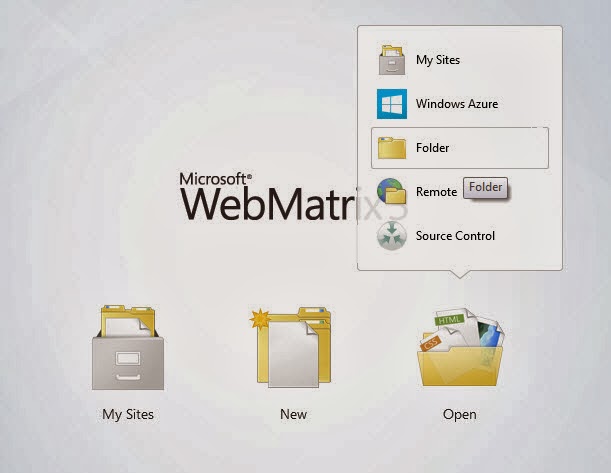
Microsoft Web Matrix - it's relatively small installer. Once done, open samples folder as shown in the screenshot. It starts an IIS express instance with the contents of the folder available in the virtual directory.

It also has multiple phone and tablet emulators. I could verify samples' UI on mobile devices. 

If required the folder could be opened in Visual Studio. It creates a Web Site and opens files in Visual Studio. I could use Visual Studio whenever required without tying my sample to a solution file. 

Web Matrix has lot more features like, developer class Database, an editor in itself, reports etc. 

IIS express: Another neat solution - launch IISExpress.exe from command line. 

It's located in Program Files (x86)\IISExpress folder. IISExpress /? gives help of complete list of commands available.

IISExpress /path:[sample folder path] /port:[any available port] should be simple enough for web server to be up-and-running.