Showing posts with label VS Code. Show all posts

Tuesday, December 6, 2016

Working with Flow on Visual Studio Code

Blog describes what I believe is an optimal development setup with Flow. It details using Visual Studio Code IDE with Flow.
Blogger: V. Keerti Kotaru . Author of Angular Material book 

Flow is a static type checker. For an introductory blog on Flow's type checking, read my earlier blog.

Optimal way to run type checking with Flow.
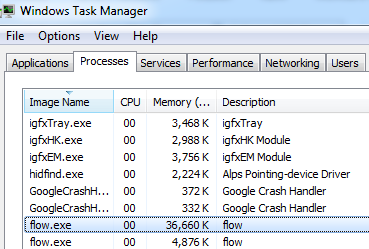
Figure 1: Flow process in the background
Primary option for type checking with Flow is to run flow in a command prompt or terminal. In VS code, you may use the integrated terminal (Ctrl + `). Flow will expect .flowconfig file at the root directory. If you are starting with Flow for the first time, run flow init to create the configuration file.

Flow will start a process (if not running already) and type checks only the JS files annotated with // @flow. Then-on, next time flow command is run, type checking will be incremental and hence it will be better performing. 

However, if you need to type check all files use flow check --all. It will start a new process and type checks all files (irrespective // @flow comment is written or not). As it starts a new process, even the ones not modified after previous type checking are checked again. It is not advisable to run every time with the --all option.

Visual Studio Code.

Ever since Visual Studio Code has been launched I've been using it extensively for JavaScript development. It's light weight & launches fast, got an integrated terminal or command prompt for running, npm, grunt or gulp tasks. It's available on both Windows and Mac machines. It has rich set of extensions for all utility actions. You may prefer to use extensions instead of typing in commands in terminal

For Flow's type checking, I'm currently using "Flow Language Support" published by Flowtype . Follow this link to view and download the extension.

Flow extension points out errors inline with the code. JavaScript files annotated with // @flow comment on top of the page are type checked. Use Problems Window or move the mouse over error to see details on each error. See figure2. Status bar shows error/warning count, click on which brings up the problems window.

Figure 2: VS Code's extension for Flow shows errors with type checking
Note: The above extension starts Flow background process once the window is launched. It incrementally type checks new files.

Skip JavaScript and Typescript syntax checking in VS Code.

In VS Code Flow and the default Typescript or JavaScript syntax checks could conflict. Use the following configuration to disable default checks.

Errors due to conflict with Typescript
"javascript.validate.enable": false,
"typescript.validate.enable": false

Go to Preferences >> Workspace Preferences (or User Preferences) and provide the configuration in settings.json. 

Note: Updating the configuration in Workspace preferences would skip JS and Typescript checking in only the current project. Updating it in User Settings will skip for all projects.

The workspace settings could be checked-in to git or any other source control. The settings are saved in settings.json under .vscode folder at the root directory. This will allow all developers on the project obtain settings by default. We don't have to do it on each machine explicitly.

References and useful links.

VS Code extension for Flow - https://marketplace.visualstudio.com/items?itemName=flowtype.flow-for-vscode
Documentation on starting a new Flow project - https://flowtype.org/docs/new-project.html#_

Thursday, December 1, 2016

Idiomatic JavaScript with Flow

This blog describes Flow, a static type checker for JavaScript. It provides getting started details and basic concepts of type checking using Flow.
Blogger: V. Keerti Kotaru . Author of Angular Material book 

What is Flow?

Flow is a static type checker for JavaScript. It is an open source project by Facebook (GitHub link). It enables specifying types for variables and objects in JavaScript.

Flow type checking could be run on a console. Easier option is to use plug-ins or extensions with IDEs. I use Visual Studio Code for JavaScript development. I find Flow Language Support extension by Flowtype publisher pretty useful. Follow the link to view and install it.

How does it work?

Specifying types for JavaScript variables and objects could be useful as they point out common code errors that could result in bugs. However, browsers do not understand flow syntax and type annotations. Flow types need to be stripped off before running on the browser. And hence Flow is a static type checker, rather than a language.

Setup Flow

Assuming an NPM package is setup for the sample code repo, install Flow using as a dev dependency on the project.

npm install --save-dev flow-bin 

We may use Babel plug-in to strip off types. But for simplicity, in this getting started blog, I'm using flow-remove-types NPM package.

Install flow-remove-types package globally on your machine.

npm install -g flow-remove-types

The code sample described in the blog is launched to Index.html. Sample also has a JavaScript file with type syntax, named index.js. As described above, once we add Flow types to the code, browser can't understand Flow syntax. Hence we will generate JavaScript file without Flow types for browsers to run. In the sample I named it bundle.js. It is generated using the flow-remove-types script. Add reference to bundle.js in Index.html

Run the following command to strip types.
flow-remove-types index.js --out-file bundle.js

Refer to complete code at this link

JavaScript Idioms

Flow claims to work well with JavaScript style of coding and idioms. I attempted the following basic samples.

In the index.js to start type checking add the following comment  on top of the file.
// @flow

Consider following function

// @flow

((number1, number2) => number1 * number2)(10,20)

The function takes two parameters number1 and number2. In the above statement we are calling the function with values 10 and 20. Here flow is inferring a type number to the parameters as we are calling the function with numeric values. Consider following code erroneously providing string on the first parameter. 

// notice first parameter is a string.
((number1, number2) => number1 * number2)('Im String',20)


Flow points out the error on variable number1, string (The operand of an arithmetic operation must be a number.).


In the above example, we haven't started using types yet. Just by adding the // @flow comment on top of the file, type checking can begin and certain problems are alerted. However, the error is shown on the statement multiplying numbers for an incorrect parameter value. Flow implied string variable because the function was called with a string. It showed the error as it finds multiplication applied on string. 

Add types

Adding types makes the developer intent clear. We can declare a variable with syntax variableName: type syntax. Consider following sample

let isItCool:boolean; 
isItCool = true;

We declared a boolean and assigned true. Assigning a non boolean will show the type error.

isItCool = "test string";
string (This type is incompatible with boolean)

Now, let's rewrite the above multiplication function with types in paramters

((number1: number, number2: number) => number1 * number2)('Im String',20)

Now the error is specific, string (This type is incompatible with number)


Let us now consider specifying return type. Here I modified multiplication to addition, a string parameter will result in concatenating two values. Consider following code,

((number1, number2) => number1 + number2)('10',20)
// It will result in 1020

This depicts why explicit typing is important to avoid bugs. Consider specifying return type on the function. Following is the modified function. Notice the highlighted part for return type.

((number1, number2):number => number1 + number2)('10',20)

Specifying return type results in error depicting resultant string is incompatible with numeric type.

string (This type is incompatible with the expected return type of number

However specifying input parameters' type will point out error with string input parameter for number type in the first place.

References and more reading material

Complete Sample - https://github.com/kvkirthy/VenCKI-Samples/tree/master/Flow-basic-sample
Read getting started guide here, https://flowtype.org/docs/getting-started.html
Visual Studio Code plug-in for Flow https://marketplace.visualstudio.com/items?itemName=flowtype.flow-for-vscode